Track your work so you can bill your work.
Timecrumbs runs in the background on your Windows PC and keeps track of which document, email, or meeting has your attention. When it's time to do your timesheet, your day is laid out in order, with each stretch of work labeled by the project it most likely belongs to. Turn those into time entries, add your notes, and the day is done.
Windows 10 and 11. No credit card. Timecrumbs keeps your activity on your computer.
- Hartwell v. Dunmore - Motion to compel (draft 3).docx - Word 2025-01421.4Drafting
- RE: Dunmore document production - Outlook 2025-01420.4Discovery
- Lindqvist Estate - trust agreement.pdf - Adobe Acrobat 2024-08771.7Advice and Counsel
- Bar CLE: ethics in e-discovery - Google Chrome CLE0.7Non-billable
- Pell Industries | Case strategy call | Teams 2025-02030.9Suggested
- Bridge 7 retrofit - girder check.xlsx - Excel 24-3111.4Final Design
- RE: 24-311 revised loads from architect - Outlook 24-3110.4Final Design
- Northgate Pump Station - S-201 FRAMING PLAN - AutoCAD 25-0481.7Preliminary Design
- Proposal - Westfield culvert replacement.docx - Word BUS DEV0.7Non-project
- Northgate Pump Station | Weekly progress meeting | Teams 25-0480.9Suggested
- Riverside Library - A-301 WALL SECTIONS - Revit 24-0171.4Construction Docs
- RE: 24-017 RFI 014 Roof drain - Outlook 24-0170.4Construction Admin
- 24-017 CD Set.pdf - Bluebeam Revu 24-0171.7Construction Docs
- 25-208 fee proposal.xlsx - Excel BUS DEV0.7Non-project
- Eastside Fire Station 4 | Design review | Teams 25-2140.9Suggested
- Acme Logistics - network redesign findings.pptx - PowerPoint C-10421.4Recommendations
- RE: Acme data request, round 2 - Outlook C-10420.4Research
- Acme Logistics - lane cost model v4.xlsx - Excel C-10421.7Research
- Proposal - Northwind Foods pricing review.docx - Word BUS DEV0.7Non-project
- Carver Health | Steering committee | Teams C-10570.9Suggested
What you did, next to what you'll bill.
The day view shows what you worked on beside your time entries, with the week's totals by project on the right. Suggestions have a dashed outline; click one to accept it. Drafts from your AI app have a check to approve them in one click, and questions wait in amber.
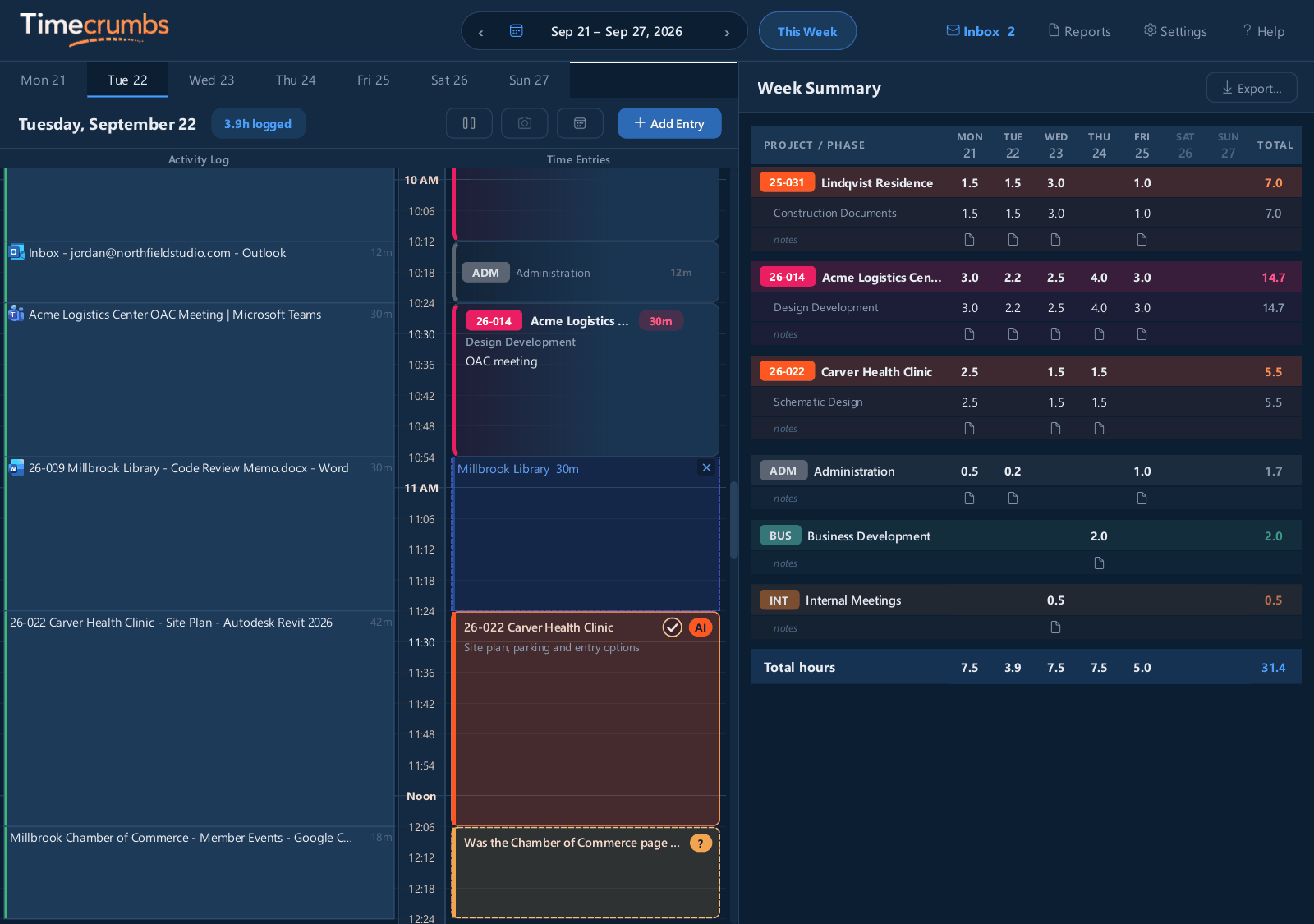
Activity
Each stretch of work, labeled with the window you were in. Time away from your desk is set aside so your lunch break doesn't end up on a bill.
Time entries
Your confirmed entries with the project, phase, and a note, beside the suggestions, drafts, and questions still waiting for you. Edit any entry, or add one by hand for a meeting across town.
Week summary
Hours by project and day. Copy them into your timesheet, or export a PDF or CSV.
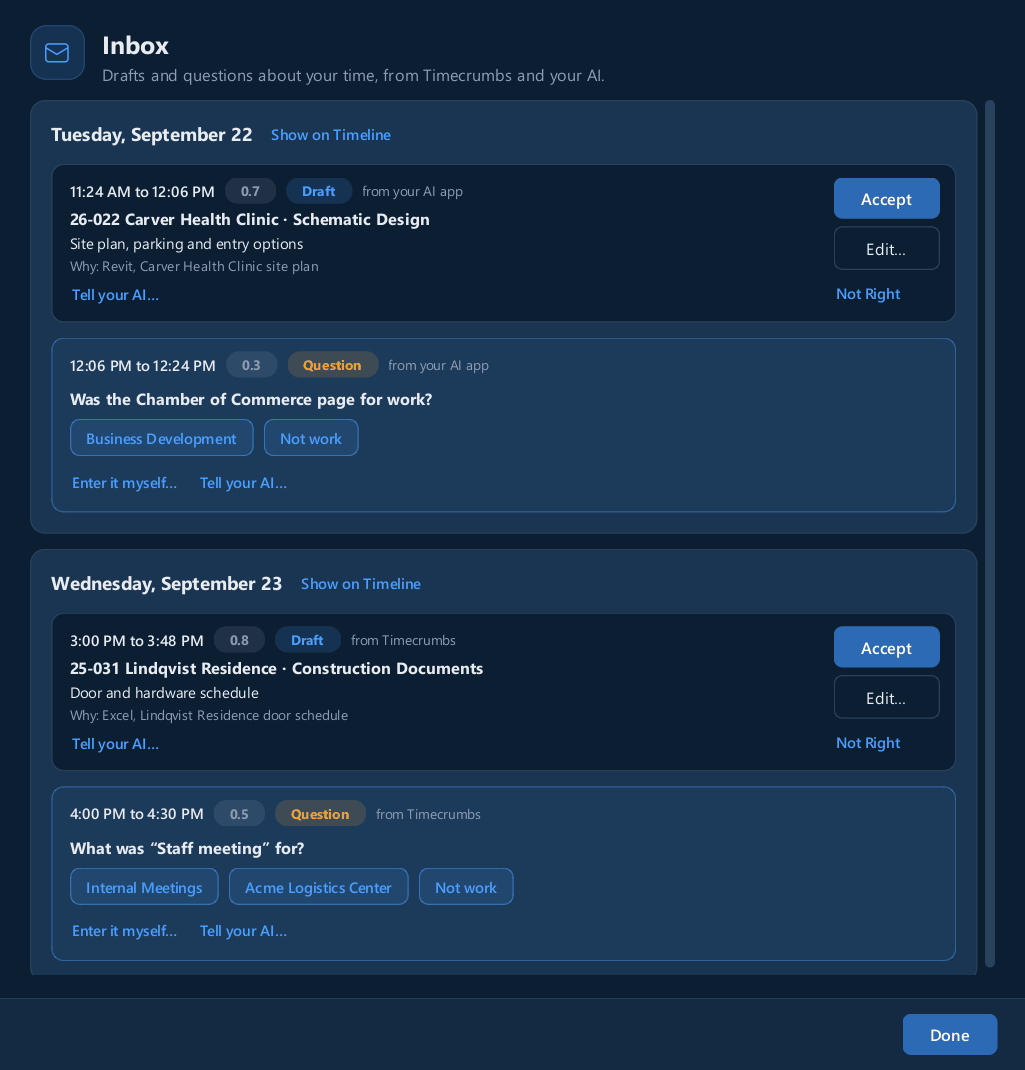
Drafts and questions, answered in a tap.
Timecrumbs drafts the time it's sure about and asks about the rest, with the likely answers as buttons. Both wait in the Inbox: accept a draft with a click, answer a question in a tap, or fix it yourself.
Your AI app can send its drafts and questions there too. By default, nothing it drafts becomes an entry until you accept it. A count on the Inbox button and the taskbar shows what's waiting.
Three steps, and you only do the last one.
-
It keeps track of your day
A small app in the system tray notes which program and document you're working in. Screenshots are off unless you turn them on.
Runs in the background -
It suggests entries
Timecrumbs groups your work into blocks and matches them to your project list using the names and numbers you already use. It learns from every entry you confirm.
Gets better as you use it -
You confirm and export
Accept a suggestion with one click and fix the ones it got wrong. If your billing system is one Timecrumbs connects to, your confirmed entries go straight in. If not, copy the week in, export a CSV, or send a PDF timesheet.
A few minutes a day
Bill in tenths, quarter hours, or half hours.
Entries land on tenths of an hour, or on five minutes if you'd rather see 1:30 than 1.5. If you bill in quarter or half hours, Timecrumbs rounds each project's day to the nearest one and carries the leftover minutes to that project's next day, so your week stays true. A billing system you connect always gets your exact time.
It knows your projects by name.
Most time trackers can tell you that you spent the morning in Word. Timecrumbs can tell you which client the document was for, because it reads the file names, email subjects, and meeting titles you already use.
Projects, clients, or matters
Track time against whatever you bill: a project number, a client, or a matter. Add phases or task codes, and each project remembers the one you used last.
Works with your AI
Connect your AI app and ask it to catch up your time. It reads what Timecrumbs recorded and drafts your days for you to accept. It works through your own AI plan, so there's no AI add-on to buy. See which AI apps.
An inbox for the rest
Drafts and questions wait in one place: accept one with a click, change it, or answer in a tap. Timecrumbs adds its own drafts too, and they learn your categories, your meetings, and time that isn't work.
Reads the tools you use
Documents, spreadsheets, PDFs, drawings, email, and web pages all count.
Meetings from your calendar
Connect your Microsoft 365 calendar and your meetings show up as suggested entries, even if you never touched the keyboard during them.
"Where were you?"
When you come back after a while away, Timecrumbs asks what you were doing, with its best guesses one tap away, so a site visit or a court appearance gets logged too. If you were in a meeting, it waits until the meeting is over to ask.
Timesheets and client reports
Export a timesheet for any date range, with totals by project and room for a signature. Or report on one project: its hours and notes over any dates, ready to send the client. Both come as PDF or CSV.
Sends time to your billing system
Connect a billing system Timecrumbs works with and confirmed entries go there on their own, matched to the right projects and tasks. For any other system, click a number to copy it.
Screenshots, if you want them
Optional snapshots of the active window help when you can't remember what last Tuesday afternoon was for. They stay on your PC and delete themselves after about a month.
One project list for the office
Import your projects from a CSV or Excel file, then share the list through OneDrive, Dropbox, or a network drive so everyone uses the same names and numbers. Projects you mark private stay on your own computer.
Learns from corrections
Move a suggestion to the right project once and Timecrumbs remembers. The more you use it, the less you correct.
Works offline
Tracking and reviewing need no internet connection. Only your calendar, a connected billing system, and update and license checks go online.
Timecrumbs keeps your activity on your computer.
Timecrumbs has no cloud account and no server holding your data. We can't see what you worked on, and neither can your employer unless you send them your entries. That matters when your work is covered by privilege or an NDA. If you connect your own AI app, it reads what it needs when you ask it, or on a schedule you set up in that app, and your AI provider processes that under your own account. Read the privacy policy.
- Window titles, programs, files, and web addressesRecorded while you workYour PC
- Screenshots, if you turn them onDeleted automatically after about a monthYour PC
- Time entries and your project listA shared list lives in the folder you chooseYour PC
- Calendar eventsRead directly from Microsoft or GoogleMicrosoft / Google
- Confirmed entries, if you connect a billing systemDate, hours, project, task, and note onlyYour billing system
- What your AI app reads, if you connect oneWhen you ask it, or on a schedule you set upYour AI provider
- Update and license checksYour app version and license key onlyInternet
One plan with every feature.
Timecrumbs
Or $90 per person per year, which gets you two months free.
- Automatic tracking and suggested entries
- Works with your AI app
- Calendar meetings and the away-time prompt
- PDF timesheets and CSV export
- Project reports for your clients
- A shared project list for your office
- Every update while you subscribe
Before you install
Who is Timecrumbs for?
Anyone who bills time to projects, clients, or matters from a Windows PC. It works the same way for architects, engineers, attorneys, consultants, accountants, and designers: keep a list of what you bill against, and Timecrumbs matches your day to it.
Does it work on a Mac?
No. Timecrumbs runs on Windows 10 and 11.
Can my boss see what I'm doing?
No. Everything Timecrumbs records stays on your PC. The only thing anyone else sees is the time entries you choose to send or paste into your timesheet, and, if you connect your own AI app, what that app reads.
We bill in 15-minute increments. Does that work?
Yes. In Settings, set Billed hours to the nearest 15 minutes. Timecrumbs rounds each project's day and carries the leftover minutes to that project's next day, so your week stays true. You can also bill exact time or the nearest 30 minutes, and show hours as decimals or as hours and minutes.
Does it connect to my billing software?
Yes, if it's one Timecrumbs connects to: your confirmed entries go there on their own. The integrations page lists them. For any other system, click any number in the week summary to copy it, or export a CSV or a PDF timesheet.
What happens when the trial ends?
Timecrumbs keeps recording for seven more days, so buying a little late doesn't leave a gap. After that, recording pauses until you enter a license key, and Timecrumbs opens read-only: you can still view and export everything, but not add or change entries. Nothing you've recorded is ever deleted; it stays on your computer.
Does it use AI?
Only if you want it to. Timecrumbs works on its own, with its own suggestions and drafts. If you use an AI app that Timecrumbs works with, you can connect it and ask it to catch up your time; it reads what Timecrumbs recorded, and the company behind your AI app processes that under your own account. The privacy policy has the details.
Will it slow my computer down?
No. It notes the active window every 30 seconds and does almost nothing in between.
Follow the crumbs to a completed timesheet.
Your first suggestions are ready by the end of your first day.